
In this article
- What a callback widget actually does on a WordPress site
- How do I add a callback widget to WordPress in 10 minutes?
- Plugin or code snippet: which install method should you use?
- Why an answering widget beats a message-taking widget
- How much is a slow callback costing you?
- Five settings to configure before you call it done
- Verify the install like a professional
- FAQ
Adding a callback widget to WordPress is a ten-minute job, and it is probably the highest-leverage ten minutes you will spend on your site this quarter. Most WordPress sites already earn traffic they never convert — visitors read a page, hesitate, and leave without ever picking up the phone. A callback widget closes that gap by turning a click into a live phone conversation.
TL;DR: To add a callback widget to WordPress, copy the widget’s JavaScript snippet from your provider, paste it immediately before the closing </body> tag using your theme’s footer hook or a code-insertion plugin, purge your page cache, then test the widget on a real mobile browser. With TalkWithLead, the widget also answers — an AI voice agent talks to the visitor and places the call within seconds.
What a callback widget actually does on a WordPress site
A callback widget is a small floating element — usually a bubble in a bottom corner — that offers the visitor a phone conversation instead of a form. The visitor taps it, gives a number or asks to talk, and the system connects the call. No inbox. No “we’ll get back to you within one business day.”
That distinction matters more than the install itself. A widget that just queues a phone number in a CRM is a contact form wearing a different costume. The version that earns its place on your site is the one that starts the conversation while the visitor is still on the page, still comparing you against two other tabs. If you are still weighing formats, our breakdown of callback widget vs click-to-call vs live chat lays out where each one wins.
How do I add a callback widget to WordPress in 10 minutes?
Here is the whole sequence. Nothing here requires a developer, and every step is reversible.
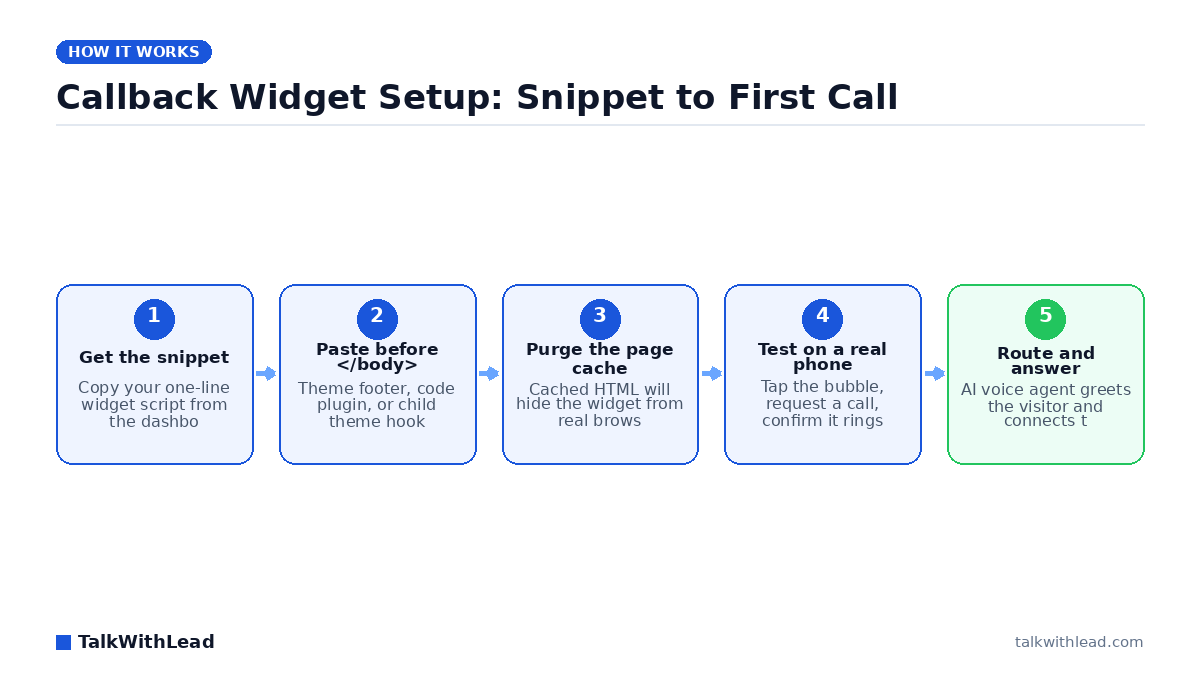
- Create the account and grab the snippet. Sign up, add your site domain, and copy the one-line script the dashboard gives you. Start with the free signup if you do not have a snippet yet. (~3 minutes)
- Decide where the code goes. Three safe options, in order of preference: a code-insertion plugin (WPCode, Insert Headers and Footers), your theme’s built-in “Footer scripts” field, or a child theme’s
wp_footerhook. Never edit a parent theme’sfooter.phpdirectly — the next theme update erases it. (~1 minute) - Paste it before the closing body tag. The footer position keeps the script out of your render path, so it will not slow your Largest Contentful Paint. (~1 minute)
- Purge every cache layer. This is the step people skip and then file a support ticket about. Clear your WordPress page cache plugin, your host’s server cache, and your CDN. Cached HTML was generated before the snippet existed, so real browsers keep getting the old version even though the code is saved. (~2 minutes)
- Test on a real phone. Open the site on your own mobile browser — not just a desktop window resized narrow. Tap the widget, request a callback, and confirm your phone actually rings. (~3 minutes)
If the widget does not appear after a purge, open your browser console and look for a Content Security Policy error or a script blocked by an optimization plugin. “Defer all JavaScript” and “Delay JS until interaction” settings in caching plugins are the two most common culprits. Add the widget domain to the exclusion list and it renders.
Plugin or code snippet: which install method should you use?
Both work. Pick based on how much control you need over where the widget appears.
| Dimension | Code snippet in footer | Code-insertion plugin |
|---|---|---|
| Setup time | ~2 minutes | ~5 minutes |
| Survives theme updates | Only via child theme | Yes |
| Page-level show/hide rules | Manual code | Built-in conditions |
| Extra plugin to maintain | None | One more |
| Best for | Sitewide widget | Landing pages only |
Default to the snippet. Reach for the plugin when you want the widget on service pages but not on checkout, or when a non-technical teammate needs to toggle it without touching theme files.
Why an answering widget beats a message-taking widget
Installing the widget is the easy part. What decides whether it produces revenue is what happens in the sixty seconds after someone uses it.
According to Harvard Business Review research, companies that reach a web lead within an hour are nearly 7× more likely to qualify it than those that wait even an hour longer. A callback widget that emails you a phone number does not deliver that hour — it delivers whenever you next check your inbox. On a Saturday afternoon, that could be Monday.
TalkWithLead closes the loop on the widget’s own side. An extremely human-sounding AI voice agent picks up the request, greets the visitor by voice, asks what they need, and places the call immediately. It handles the conversation in 50+ languages, so a Spanish-speaking visitor is not stuck reading English form labels. Unlimited long-distance calling means a prospect three time zones away costs you nothing extra to reach. You can hear it running on a live site through the Live Demo.
Best for: WordPress site owners who get real traffic, sell something worth a phone conversation, and cannot staff a live answering desk every hour their site is open.
Not the right fit if: your product sells entirely self-serve at a low price point and a phone call would only add friction to the checkout.
How much is a slow callback costing you?
Run the arithmetic on your own numbers rather than trusting a generic benchmark. Here is an illustrative example, with every assumption stated:
- Assume 2,000 monthly visitors to your service pages.
- Assume 2% tap a callback widget — 40 requests a month.
- Say even 1 in 4 of those requests goes unanswered until the next business day: 10 lost conversations.
- Assume a 20% close rate and a $1,500 average job value: roughly $3,000 a month walking to a competitor.
Those inputs are placeholders — swap in yours. The free missed-call revenue calculator does the math with your traffic, close rate, and ticket size. Compare the output against published pricing and the decision usually makes itself. For a deeper look at why the first minute carries so much weight, read how fast you should call a new lead.
Five settings to configure before you call it done
A default install works. A configured install converts. Spend ten more minutes here:
- Trigger timing. Show the widget after a short scroll or dwell rather than the instant the page paints. An overlay that lands before the visitor reads your headline gets dismissed on reflex.
- Mobile placement. Check that the bubble does not cover your primary call-to-action button on a 375px-wide screen. Most callback requests arrive from phones.
- Business hours and after-hours behavior. Decide explicitly what happens at 11pm. An AI voice agent answering beats a form that promises a reply.
- Language handling. If your traffic is mixed, confirm the agent switches languages on its own instead of forcing a menu choice.
- Analytics events. Fire a GA4 event on widget open and on completed callback so you can measure the widget instead of guessing about it.
Chatbots and contact forms remain the slow alternative here: they collect text, hand you a transcript, and leave the actual selling for later. Voice skips that queue. If you want the side-by-side, see AI voice agent vs chatbot conversion rate.
Verify the install like a professional
Before you move on, confirm four things from a clean browser session with cache disabled: the widget renders on your homepage and on a deep service page; tapping it produces an actual ring on your phone; PageSpeed Insights shows no meaningful regression in your Largest Contentful Paint; and your analytics records the open event.
If all four pass, you are done. The widget will keep working while you sleep, and every visitor who wants to talk gets a conversation instead of a confirmation message. Start the free signup, paste one line of code, and watch what happens when your website starts answering back.
FAQ
How do I add a callback widget to WordPress without a plugin?
Copy your provider’s JavaScript snippet and paste it into your theme’s footer scripts field, or add it to a child theme using the wp_footer action hook. Then purge your page cache and CDN so browsers receive the updated HTML. No plugin is required for a sitewide widget.
Will a callback widget slow down my WordPress site?
Not meaningfully, if it loads asynchronously in the footer. The script runs after your page content renders, so it should not affect Largest Contentful Paint. Verify with PageSpeed Insights before and after installing, and exclude the widget domain from any “delay JavaScript” setting that would break it.
Why is my callback widget not showing up after I installed it?
Nine times out of ten it is caching. Purge your WordPress cache plugin, your host’s server cache, and your CDN. If it still does not appear, check the browser console for a blocked script — optimization plugins that defer or delay JavaScript are the usual cause, and adding the widget domain to their exclusion list fixes it.
Can a callback widget talk to visitors in other languages?
With TalkWithLead, yes. The AI voice agent handles conversations in 50+ languages and adapts to the caller rather than making them pick from a menu. That matters on sites drawing multilingual traffic, where an English-only form quietly filters out qualified buyers.
Is a callback widget better than live chat for a WordPress site?
For anything sold through a conversation, usually yes. Chat requires typing, produces a transcript instead of a relationship, and stalls when nobody is staffing it. A callback widget backed by an AI voice agent gets the visitor on the phone in seconds, at any hour, which is where deals actually close.
What does a callback widget cost?
Most callback tools price as a flat monthly subscription rather than per-minute, and TalkWithLead includes unlimited long-distance calling so international prospects do not create surprise charges. Current tiers are listed on the pricing page; run your own numbers through the missed-call calculator to see what the widget needs to recover to pay for itself.
Let’s Turn More Website Visitors Into Sales Conversations
TalkWithLead is the AI voice-first lead-conversion platform behind hundreds of high-intent business websites. See it on your own number in a 15-minute live demo, or spin one up free and have it running before lunch.